Some of the commonly asked questions about accounting entry are answered here.
In Tally.ERP 9 you can record the depreciation of fixed assets using a journal voucher. To do this, create a Depreciation ledger under Indirect Expenses .
1. Go to Gateway of Tally > Accounting Vouchers > F7: Journal .
2. Debit the depreciation ledger and enter the depreciation value in the Amount field.
3. Credit the fixed asset ledger for which depreciation is recorded. The credit amount appears automatically. The Accounting Voucher Creation screen appears as shown below:
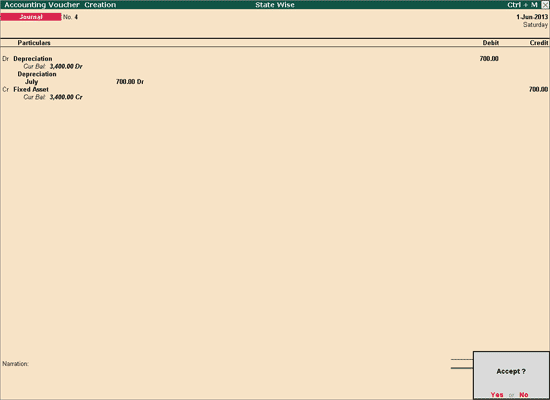
4. Save the journal voucher.
You can have separate depreciation ledgers for each fixed asset or use a single ledger to record deprecation of all fixed assets.
The depreciation chart depicts period-wise break up of depreciation amount for one or all assets. This chart can be generated by maintaining Cost Categories and Cost Centres.
To get a period-wise depreciation chart
Create Cost Category and Cost Centres in the hierarchy as shown below.
|
Cost Category |
Under |
|
Depreciation |
Primary Cost Category |
|
Cost Centre |
Select Category |
Under |
|
Fixed Asset |
Depreciation |
Primary |
|
April |
Depreciation |
Fixed Assets |
|
May |
Depreciation |
Fixed Assets |
In the above example, fixed asset represents the asset for which depreciation has to be recorded. If you want to account depreciation of different assets separately, create separate cost centres representing each asset. The months represent the different periods.
With this hierarchy in place, allocate the depreciation value to the cost category (Depreciation) created and the cost centre for the respective period (July) in the journal voucher, as shown below.
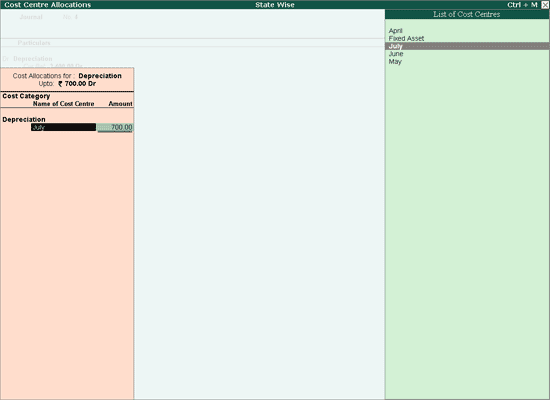
This set of ledgers and cost centres created in a hierarchy will give you the Depreciation Chart.
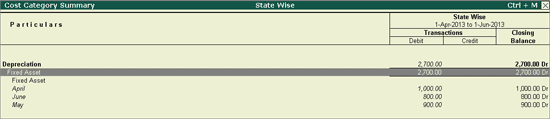
Periodic Breakup of Deprecation
Go to Gateway of Tally > Display > Statement of Accounts > Cost Centres > Category Summary .
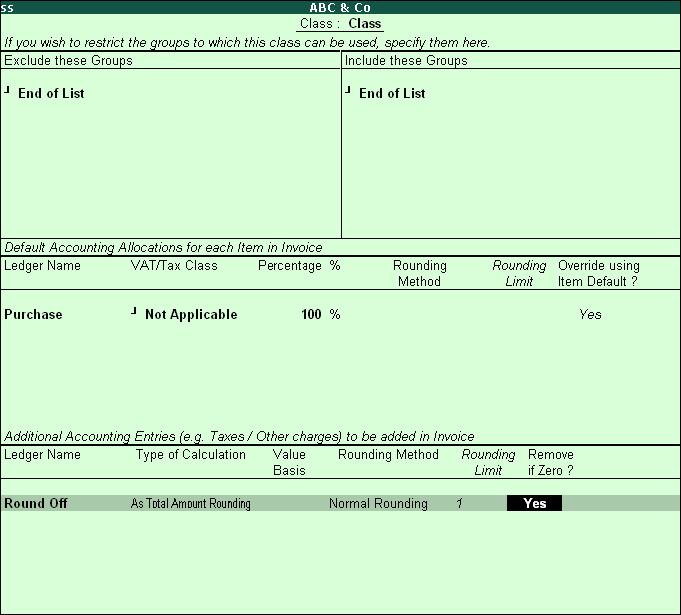
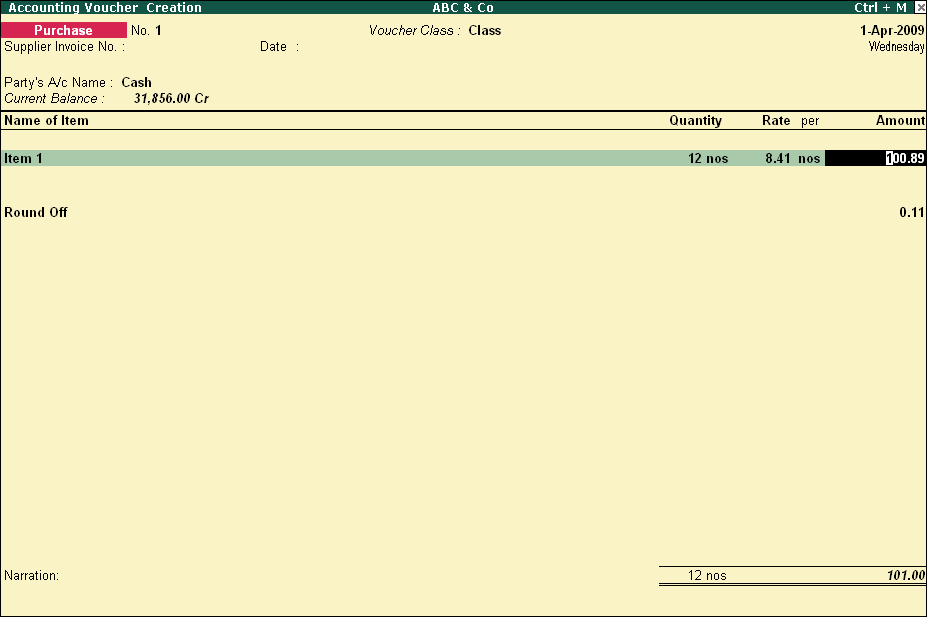
In Tally.ERP 9, you can configure a voucher type to round off decimal values. Follow the steps given below to configure Purchase voucher to round off transaction values.
1. Go to Gateway of Tally > Accounts Info. > Voucher Types > Alter > Purchase > enter name for the voucher class in Name of Class field.
2. Under Additional Accounting Entries e.g. Taxes/Other charges to be added in Invoice of Voucher Type Class screen, add a ledger Round Off (grouped under Indirect expenses).
3. Select Type of Calculation - As total Amount Rounding , Rounding Method as ' Normal Rounding ', enter 1 for Rounding Limit:1 and set Remove if Zero to Yes.
4. Accept changes and save the Voucher Type.

5. Now pass the Purchase entry using the above Voucher Class. Tally.ERP 9 will automatically rounded off the voucher value.

It is possible to maintain separate purchase and sales account of each branch.
1. Go to Gateway of Tally > F11: Features > F1: Accounting Features .
2. Enable Maintain Cost Centres .
3. Create Branches as cost centres, from Gateway of Tally > Accounts Info. > Cost Centres > Create .
4. Record purchase and sales entry.
5. Select the required cost center (Branch).
6. Allocate the amount.
7. Check the cost center break up report, from Gateway of Tally > Display > Statements of Accounts > Cost Centre > Cost Centre Break-up .
Yes, there is a provision to enter duplicate or recurring expenses at the end of every month automatically.
● Open any of the reports.
● Select the voucher that is required and press ALT + 2 .
● Save the same after changing the date.
This is the date which is considered for the computation of Due Date /Interest. This field appears if the option Use Effective Date for vouchers? is set to Yes . Date of Voucher and Effective Date may be different. Also to change Effective Date, press F2 that prompts Effective Date below Current Date .
Set Use EFFECTIVE dates for vouchers to Yes , if you want to enter effective dates for vouchers. You would opt for this only when there are instances where a transaction under consideration for overdue/ageing analysis, is recorded currently but will take effect from another date. If an effective date is entered, the overdue/ageing will be considered from the effective date and not from voucher date.
For example :
Mr. John gave a loan of Rs. 10,000/- to Mr. Pai on 1-4-2016 by entering into a contract, where Mr. Pai is given 30 days’ time to repay the amount and until then interest will not be charged and after that interest will be charged at 10% per month.
In this case the interest parameter can be set to calculate interest from effective date of voucher and give the effective date as 1-5-2011 during voucher entry. Now when checked the interest calculation report interest will be calculated only from 1-5-2016.
View a Ledger Account with voucher details from Account Books menu.
1. Go to Gateway of Tally > Display > Accounts Books .
2. Select the required ledger to list out the voucher details of the ledger.
3. Press Alt+F2 to change the period.
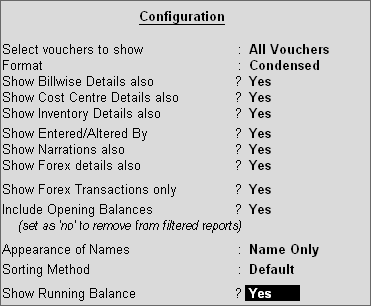
4. Click F12: Configure to activate the required fields. The Configuration screen appears as shown below:

5. Set the option Show Running Balance? to Yes to see the running balances for ledger voucher report.
6. Press F7: Monthly to view the monthly summary.
7. Press Alt+F8 to view the columnar report.
Note : You are entitled to select another ledger from the Ledger Voucher screen. Click F4: Ledger to select another ledger from this screen.
If a voucher is deleted, the serial number changes. If you want to avoid voucher renumbering, you can cancel the voucher instead of deleting it.
To cancel a voucher
1. Go to Gateway of Tally > Display > Daybook .
2. Select the voucher and click Alt + X to cancel.
3. Press Ctrl+A to accept. If required, you can convert the cancelled voucher to a regular voucher.
To convert cancelled voucher to regular
1. Go to Display > Day Book > Cancelled Voucher entry.
2. Record the entry.
3. Press Ctrl+A to accept. The cancelled voucher will now be regularised.
Accounts of parties with whom your company has trade relationship must be opened under any of the following groups (or sub-groups under them).
● Sundry Debtors
● Sundry Creditors
● Branch/Divisions
Sales and Purchase account groups are meant for Revenue accounts and are reflected in the Profit & Loss account . If you open party accounts under these groups, you will find it difficult to pass sales or purchase voucher transactions. For example, in a sales voucher transaction entry, you must debit an account which is a sundry debtor, branch/division or even a sundry creditor. Moreover, other facilities like bill-wise allocation and tracking cannot be enabled unless the accounts belong to one of these groups.
Opening two accounts of the same party
Tally has separately classified debtors, creditors and branch/divisions only for convenience. There is no operational distinction except for the purpose of keeping the accounts of a particular group together during display and analysis. Thus you can pass both sales and purchase entries for a party account placed under Sundry Debtors. Use the classification depending on the most natural group for the party. For example, parties from whom you buy more frequently than you sell to, could be placed under Sundry Creditors, as that would be the natural place for you to look for their account.
Tally does not restrict the accounts from having obverse balances. Thus, a Sundry Debtor can have a credit balance depending on the state of the account. You need not open two accounts of the same party - one under Sundry Debtors and another under Sundry Creditors.
Note: Tally restricts you from opening two identical ledger accounts. Of course, you may decide to circumvent by marking one account as 'A & Co - S/Dr' and another 'A & Co - S/Cr. Doing this would allow you to have two accounts of the same party under two groups, but you would lose the advantage of analysing your customer's position in one area.
Placing expenditure items under a Liabilities group, e.g., the expenditure item 'Rates & Taxes' under the group 'Duties and Taxes'.
The group Duties and Taxes is specifically meant to handle taxation liabilities of your company. Rates & Taxes and other statutory expenses should be placed under Indirect Expenses.
Simply adhering to the reserved groups may be sufficient for many organisations but for greater diversity, Tally allows you to create your own groups, either as sub-groups or primary groups. Groups can be sub-classified to practically an unlimited level, to give a virtual accounting tree. At the lowest level, of course, would be the ledger account. An example of sub-groups would help illustrate the power of this facility.
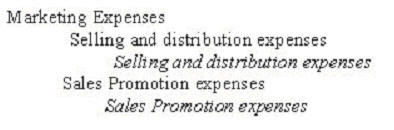
The group Indirect Expenses can be sub-classified as Under (ledgers given in italics).

Only the ledger accounts are used during voucher entry - and the grouping structure remains transparent, irrespective of the use of sub-classification.
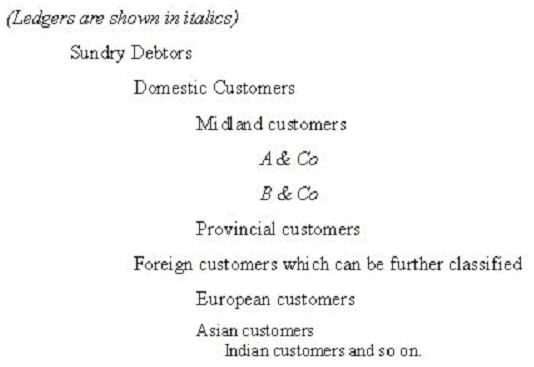
This idea can be easily extended to other areas like Sundry Debtors, Sales Accounts, Purchase Accounts, etc. For example, Debtors and Creditors are very useful when sub-grouped according to the geographical areas.

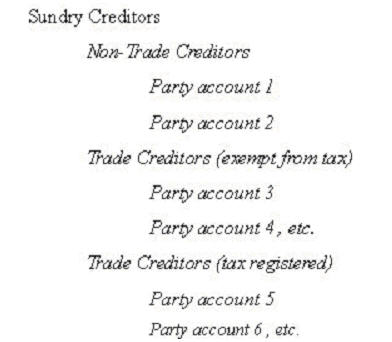
You may prefer to classify creditors according to their tax status.

Too many levels of sub-groups may make their use redundant and their management unwieldy. A simple guideline could be to create branches of sub-groups or ledgers only if they are two or more than in number. A situation where you have created groups as follows should be avoided.

You could have done the same by creating ledgers directly under Marketing Expenses.
Note: While it is necessary to assign every ledger to a group/sub-group, it is not essential to have your own sub-classification of accounts; you may simply use the reserved groups for grouping your ledger accounts.
It is not compulsory to assign Tracking No. for all Receipt Notes or for all Purchase transactions. Tally allows the flexibility to mark the Tracking No. as "Not Applicable" and complete/accept the transaction. Tally updates either the Inventory or Accounting parts depending upon the nature of entry.
Note:
♦ If the Receipt Note with Tracking No. is marked as "Not Applicable" – becomes a complete Inventory Document, affecting only the Inventory value but not the Accounts. In this case, the Purchase Bills Pending list is not generated.
♦ If the Purchase Entry with Tracking No. is marked as "Not Applicable" – the Accounts are updated without increasing the Stock. In this case, the Purchase Bills Pending list is generated as "Bills recd. but Goods not recd."
An item Invoice cannot be changed to an accounting invoice and vice versa, due to the following reasons:
● The primary selection when a Sales entry is made as an Item Invoice, will be an item, while the secondary selection will be accounts for an accounting allocation. In the process of making a Sales entry as an Accounting Invoice, the primary selection (under Particulars) is accounts and there is no item allocation in this case. Therefore, a sales entry passed as an Item Invoice will not be allowed any alteration into an accounting invoice, since an accounting invoice does not have item allocation. Similarly, a sales entry passed as an Accounting Invoice will not be allowed any alteration into an Item Invoice, since there is no item allocation in an accounting invoice.
● The information entered for both the vouchers are different. Hence the option to change the type from Accounting to Item Invoice and vice versa is not provided in the voucher alteration mode.
● In the process of making a Sales entry into an Item Invoice, the primary selection will be with an item while the secondary selection for accounting allocation will be with accounts. Whereas, when we make a Sales entry as Accounting Invoice, only the accounting details get updated and there is no item allocation involved in this case. Therefore, it is not possible to change the type from item invoice to accounting invoice, and vice versa through sales alteration mode.
If the user is restricted not to pass the transactions then Alt+2 (Duplicate) option will not appear. If user is provided permission to pass/alter transactions then under Display Alt+2 (Duplicate) appears by default. It is suggested to restrict user to pass/alter transactions.
Security levels can be configured to allow or disallow access to a feature. Various type of access can be provided to a feature such as full access, create, alter, display, print, and preview.
A combination of different types of access are used to get the required user controls for a security level.
In this section
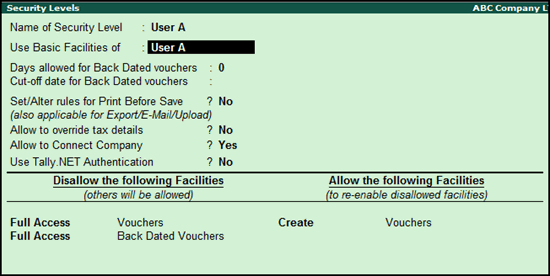
● Allow creation of vouchers, and disallow alteration of current date voucher
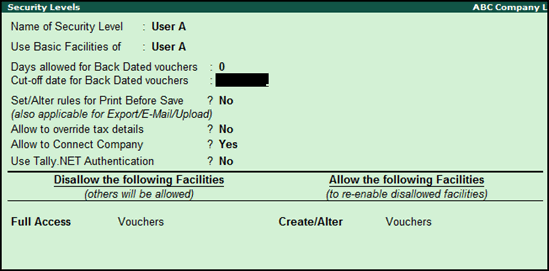
● Allow creation of vouchers and alteration of current date of voucher
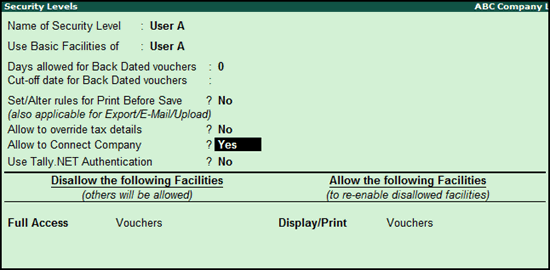
● Allow displaying and printing of vouchers
● Allow creation, alteration, and deletion of vouchers
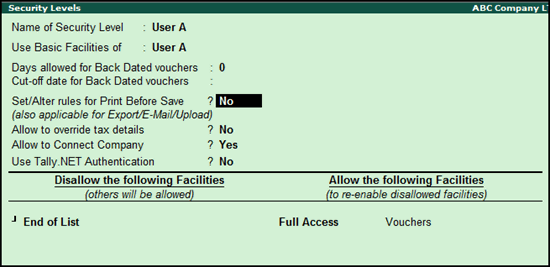
1. Gateway of Tally > F3: Cmp Info > Security Control > Types of Security > select security level.
2. Select Full Access from Type of Access and Vouchers from List of Reports under Disallow the following Facilities .
3. Select Full Access from Type of Access and Back Dated Vouchers from List of Reports under Disallow the following Facilities .
4. Select Create from Type of Access and Vouchers from List of Reports under Allow the following Facilities .

5. Press Ctrl+A to accept.
1. Gateway of Tally > F3: Cmp Info > Security Control > Types of Security > select security level.
2. Select Full Access from Type of Access and Vouchers from List of Reports under Disallow the following Facilities .
3. Select Create/Alter from Type of Access and Vouchers from List of Reports under Allow the following Facilities .

4. Press Ctrl+A to accept.
1. Gateway of Tally > F3: Cmp Info > Security Control > Types of Security > select security level.
2. Select Full Access from Type of Access and Vouchers from List of Reports under Disallow the following Facilities .
3. Select Display/Print from Type of Access and Vouchers from List of Reports under Allow the following Facilities .

4. Press Ctrl+A to accept.
1. Gateway of Tally > F3: Cmp Info > Security Control > Types of Security > select security level.
2. Select End of List from Type of Access under Disallow the following Facilities .
3. Select Full Access from Type of Access and Vouchers from List of Reports under Allow the following Facilities .

4. Press Ctrl+A to accept.
You can print narrations entered in the vouchers by enabling the option, Print narration? in the voucher printing configuration screens.
● Go to Gateway of Tally > Accounting Vouchers or Inventory Vouchers or Order Vouchers or Payroll Vouchers > press Alt+P > press F12 > set the option Print narration to Yes .
In case of purchase and sales vouchers, press F12 > F12 > set the option Print narration? to Yes .
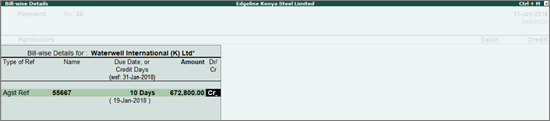
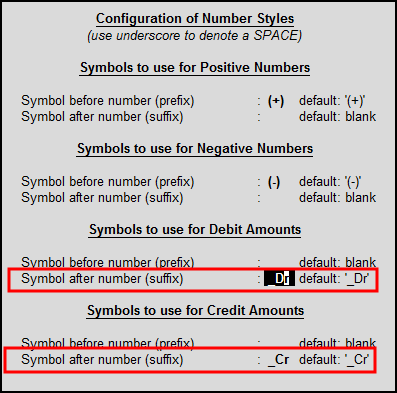
During voucher entry, the cursor may stop in the Dr/Cr field in the Bill Wise Details screen when the symbols for debit and credit are not specified.

To fix this issue, you have to specify the required symbols in Numeric Symbols .
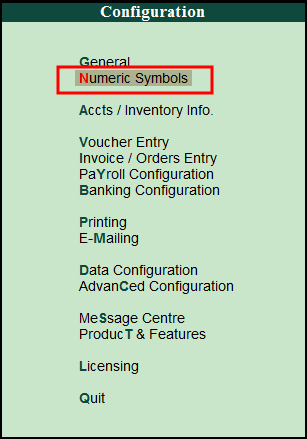
1. Go to Gateway of Tally > F12: Configure > Numeric Symbols .

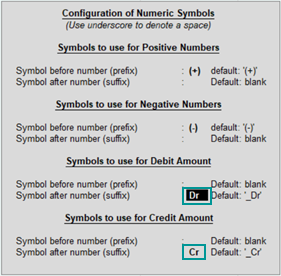
2. Under Symbols to use for Debit Amount , enter Dr in Symbol after number (suffix) .
3. Under Symbols to use for Credit Amount , enter C r in Symbol after number (suffix) .

4. Press Ctrl+A to accept.
Now the cursor won't stop in the Dr/Cr field in the Bill Wise Details screen.
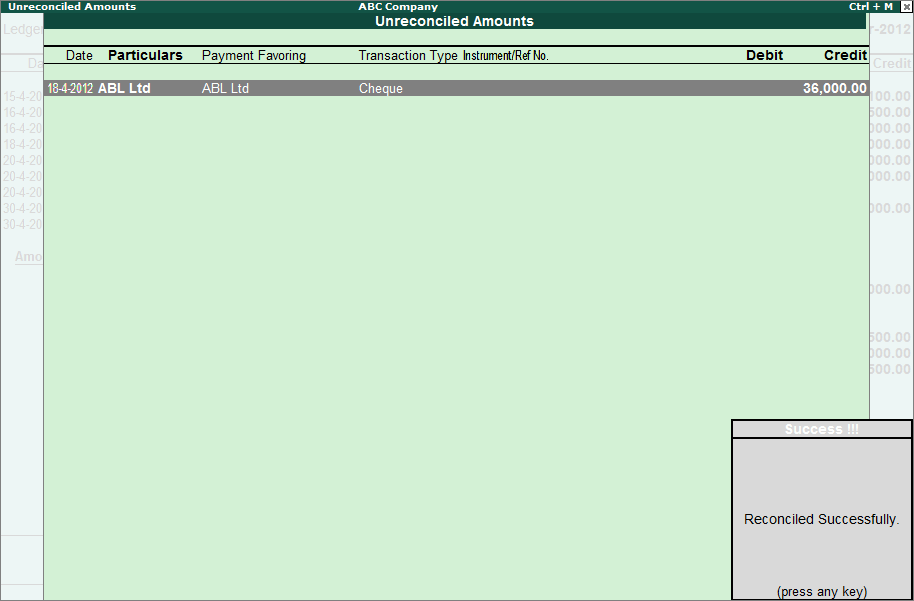
On importing bank statements to Tally.ERP 9, some transactions might appear in the Amounts not reflected in Company Books section of the Bank Reconciliation screen.
● The Bank Statement does not have the correct instrument number.
● Instrument number is not specified in the Payment/Receipt voucher.
● The transaction is not recorded in the books of accounts. For example: Bank Charges.
● Check if the correct Instrument Number is mentioned in the Bank Allocation screen of the Payment/Receipt voucher.
● In Bank Reconciliation screen, press Alt+R or click R: Reconcile Unlinked to view the list of transactions with matching amounts.

● Select the transaction using Spacebar and press Enter. The transaction will get reconciled.

● Create a new Payment/Receipt voucher for the transaction (if a voucher for the same has not been recorded earlier in Tally.ERP 9). Click C: Create Voucher button or press Alt+C by placing the cursor on the respective transaction.


Note: Pending list is generated as "Bills recd. but Goods not recd."
Generally, direct Expenses and direct incomes groups are available only for profit-oriented companies, and they are not required for non-profit organizations like NGOs. Hence, if you set the option Income/Expense Statement instead of P & L to Yes in F11: Accounting Features, Tally will not display the Direct Expenses and Direct Incomes Groups .
To create the ledgers under Direct Expenses and Direct Incomes Groups, set the option Income/Expense Statement instead of P & L to No .
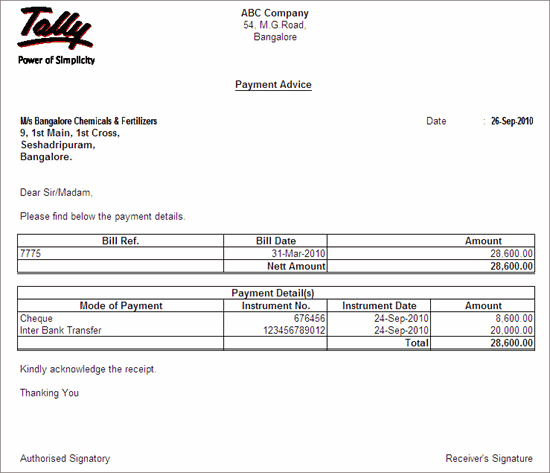
You can print the Payment Advice with company logo.
1. Go to Gateway of Tally > Banking > Payment Advice .
2. Select the required Ledger account from List of Ledgers . The Payment Advice screen is displayed with list of payment vouchers.
3. Click Print or press Alt+P .
4. Press Spacebar to select the required payment row(s).
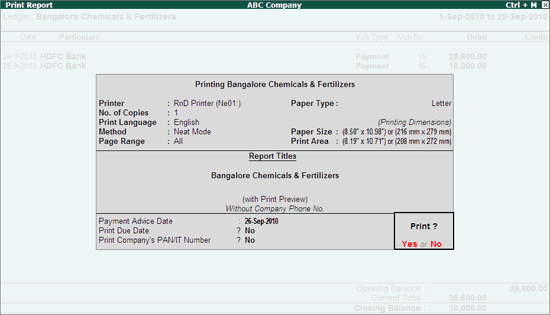
5. Click Print or press Alt+P . The Print Report screen appears as shown:

6. Click No or Esc to set the other options as follows:
● Payment Advice Date : By default, the current date is displayed. Provide the required date.
● Print Due Date : By default, this option is set to No . Set it to Yes to print the due date in the payment advice.
● Print Company’s PAN/IT Number : By default, this option is set to No . Set Yes to print the PAN/IT No of the company.
The Payment Advice Print Configuration screen allows the user to enable/disable Printing Company Logo and also to set a different Location of Logo temporarily based on your requirement.
● Click F12: Configure or press F12 at the Print Report of Payment Advice. The configuration screen appears as shown:

Note: The Location of Logo set in F11: Accounting Features will be the default.
● Set the required options and Save the settings. The Print Report screen appears.
● Accept to Print. The Payment Advice is displayed as shown:

Bill-wise details can be displayed and printed only for ledgers, where this facility is enabled in the Master. Ledger report(s), for which this facility is not enabled in the Master, will not carry Bill-wise details.
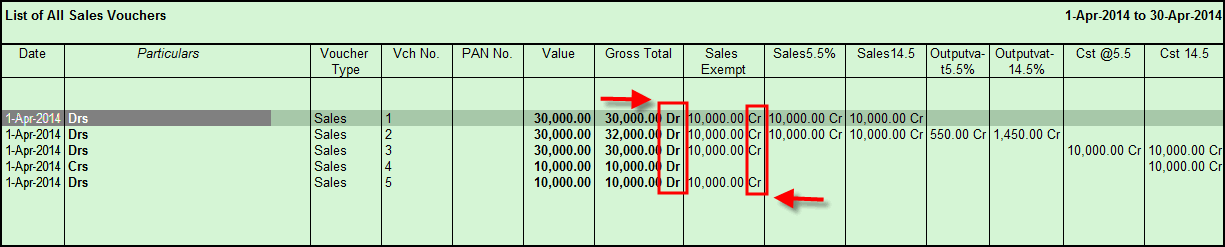
Follow the steps given below to display +/- instead of Dr/Cr.
1. Go to Gateway of Tally > Display > Accounts Book > Sales Register > Enter on particular month > F5 (Columnar) . Amount is reflected in Dr/Cr instead of (+) (-) as shown below:

2. From Gateway of Tally > F12 (Configure) > Numeric Symbols

3. Under Symbols to use for Debit Amounts & Credit Amounts it is shown as Dr/Cr

4. Under Symbols to use for Debit Amounts & Credit Amounts change the Symbol after number (suffix) + instead of _Dr and - instead of _Cr

5. Accept the screen and restart Tally for changes to effect.
After restarting Tally.ERP, go to Gateway of Tally > Display > Accounts Book > Sales Register > Press Enter on particular month > F5 (Columnar). Now Amount is reflected in (+) (-) instead of Dr/Cr as shown below:

Note : After making the above changes Tally.ERP will not allow you to pass any transactions. You need to retain the old configuration ( Dr/Cr instead of (+) (-) )in order to pass the transactions. The above configurations are used only for report purpose.
You can specify the currency in which you would like your ledgers to be maintained. Tally allows you the ease of maintaining your ledgers in any currency. Your account will reflect the amount in the selected currency.
You can create a new currency by pressing Alt+C .
It is strongly advised that you maintain the currency of the ledger as the base currency. Maintain foreign currency accounts only if you want the balance in that currency. You would normally need to maintain only foreign currency bank accounts and not other ledgers in foreign currency. Maintaining an account in the base currency, still allows you to enter transactions in another currency.
Note: The relevant options should have been activated in the company features in prior.
Even though you have specified the conversion factor for alternate units in stock item creation/Alteration screen, you can change the same during voucher entry.
Consider a scenario where Pieces is the Primary unit and box is an alternative unit where 100 pieces = 1 box. While passing the voucher entry, in Quantity field enter the conversion rate, i.e., 56 pieces = 1box. Thus, Tally will consider 56 pieces form a box for that particular entry.
Capital Account : This holds the Capital and Reserves of the company. Examples of ledgers that may be opened under this group are Share Capital, Partners' Capital A/c, Proprietor's Capital Account.
Reserves and Surplus [Retained Earnings] : These contain open ledgers like Capital Reserve, General Reserve, Reserve for Depreciation, etc.
Current Assets : Under Current Assets you may place assets that do not fall under the following sub-groups:
● Bank Accounts : For Current, savings, short term deposit accounts, etc.
● Cash-in hand : Tally.ERP 9 automatically opens one Cash A/c under this group. You are permitted to open more cash accounts, if necessary.
Note: An account under Cash-in-hand group or Bank Accounts/Bank OCC A/c group is printed as separate Cash Book in the traditional Cash Book format and does not form part of the Ledger.
● Deposits (Asset) : In essence, a place for Fixed Deposits, Security Deposits, or any deposit made by the company (not received by the company, which is a liability).
● Loans & Advances (Asset) : For all loans given by the company and advances of a non-trading nature, e.g., advance against salaries, or even for purchase of Fixed Assets. We do not recommend you to open Advances to Suppliers account under this group. Doing so gives rise to the difficulty in ascertaining advance position of a particular supplier and to adjust future bills against such advances. For further details, please refer to the section on Common Errors.
● Stock-in-hand : This is a special group. You may wish to open accounts like Raw Materials, Work-in-Progress and Finished Goods. How the balances are controlled depends on whether you opted to maintain an integrated account-cum-inventory system in the company features.
Integrated Accounts-cum-Inventory
You are allowed transactions in Inventory records and the account balances are automatically reflected in the Balance Sheet as Closing Stock. You are not allowed to directly change the closing balance of an account under this group.
Non-integrated Accounts-cum-Inventory
Accounts that fall under this group are not permitted any transactions. It allows you to hold opening and closing balances only. Since no vouchers can be passed for these accounts, they are the only accounts for which the closing balances can be directly altered (by an authorised user only)
● Sundry Debtors : Do not open your customer accounts under the Sales Account group, which is a revenue account. For more information on the most common errors made while grouping accounts, please refer to the separate paragraph on the topic provided below.
Current Liabilities : You may open accounts like Outstanding Liabilities, Statutory Liabilities and other minor liabilities directly under this group. The Sub-groups under Current Liabilities are Duties and Taxes, Provisions and Sundry Creditors.
● Duties and Taxes : A convenient place to find the total liability (or asset in case of advances paid), as well as the break-up of individual items and all the tax accounts like VAT, MODVAT, Excise, Sales and other trade taxes.
● Provisions : For provision accounts like Provision for Taxation, Provision for Depreciation, etc.
● Sundry Creditors : For trade creditors of the company. Do not open your supplier accounts under the Purchases Account group, which is a revenue account. For more information on common and possible errors in grouping of accounts, please refer below to the separate paragraph on the topic.
Fixed Assets : To group your fixed assets accounts like Land & Buildings, Plant & Machinery, Furnitures & Fixtures, etc. A convenient place to view the total fixed assets available in the company.
Investments : To group your investment accounts like Investment in Shares, Bonds, Govt. securities, long term Bank deposit accounts, etc. A convenient place to view the total investments made by the company.
Loans (Liability) : For long term loans taken by the company.
● Bank OD Accounts [Bank OCC Accounts] : There are two distinct types of Bank Accounts in Tally.ERP 9. The Bank OCC A/c is meant to record the company's overdraft accounts with banks. e.g., Bill Discounted A/cs, Hypothecation A/cs etc.
Note: An account under Bank OCC A/c group is printed as a separate Cash Book in the traditional Cash Book format and does not form part of the Ledger.
● Secured Loans : For term loans and other long/medium term loans that have been obtained against security of some asset, Tally.ERP 9 does not verify the existence of any security. Typical accounts would be Debentures, Term Loans, etc.
● Unsecured Loans : For loans obtained without any security .e.g., Loans from Directors/partners or outside parties.
Suspense Account : Theoretically speaking, this group should not exist. However, in modern accounting, many large corporations use a Suspense Ledger to track moneys paid or recovered, of an unknown nature. The most common example is money paid for Travelling Advance whose details would be known only upon submission of the TA bill. Some companies may prefer to open such accounts under the Loans and Advances (Asset) group.
Suspense Account is a Balance Sheet item. Any expense account entitled 'suspense', should be opened under a Revenue group like Indirect Expenses and not under the Suspense Account group.
Miscellaneous
Expenses (Asset)
: This group is typically used more for legal
disclosure requirements, like Schedule VI of the Indian Companies
Act. It should hold incorporation and pre-operative expenses. Companies
would write off a permissible portion of the account every year. A
balance would remain to the extent not written off in Profit &
Loss Account. Tally.ERP 9 does not, however, show a loss, carried
forward in the Profit & Loss Account, under this group. The Profit
& Loss Account balance is shown separately in the Balance Sheet.
Branch/Divisions : This group is provided to keep the ledger accounts of all companies that are your company's branches, divisions, affiliates, sister concerns, subsidiaries, etc. This is a group of convenience. You may not wish to utilise it in this manner. Note that Tally.ERP 9 permits Sales and Purchase transactions to take place with accounts opened here. Remember, these are their accounts in your books and not their books of accounts. Just treat them as you would any party account. If you wish to maintain the books of that branch/division on you computer, you must open a separate company. (Tally.ERP 9 allows maintenance of multiple company accounts).
Sales Account : For different sales accounts. The natural segregation of your sales accounts could be based on Tax slabs or type of sales. This also becomes a simple mechanism for preparation of Tax returns.
An example of such a classification may be helpful:
Classify under Sales Accounts the following sub-groups
o Domestic Sales
o Export Sales
Now under Domestic Sales open the following ledgers:
o Sales (10%)
o Sales (5%)
o Sales (exempt)
You may even open an account Sales Returns under the group Domestic Sales to view your net sales after returns (or the returns may be directly passed through journal against the specific sales account).
Do not open your customer accounts under this group.
This is similar to a sales account, except for the purpose of the transaction.
Purchase Accounts : This is similar to a sales account, except for the purpose of the transaction.
Direct Income [Income Direct] : For non-trade income accounts that affect Gross Profit. All trade income accounts would naturally fall under Sales Accounts. You may wish to use this group for accounts like Servicing Contract Charges that follow the sales of equipment.
You need not use the Sales Account group at all, if yours is a professional services company. Instead, you could open accounts like Professional Fees under this group.
Indirect Income [Income Indirect] : For Miscellaneous non-sale income accounts, e.g., Rent Received and Interest Received.
Direct Expenses [Expenses Direct] : For manufacturing or direct trading expenses. These accounts determine the Gross Profit of the company.
Indirect Expenses [Expenses Indirect] : For all other administrative, selling or non-direct expenses.
Tally.ERP 9 automatically opens the Profit & Loss Account which is a Reserved Primary account. You may use this account to pass adjustment entries through Journal Vouchers, e.g., Transfer of Profit or Loss to Capital or Reserve account
Most of the time, the stock item/ledger creation from within a voucher using Alt+C means that a stock item or ledger are created for the first time and don’t require opening balance. If you want to enter the opening balance use Ctrl+Enter after creating ledger/item in the same voucher.
The Payment Advice supports for one party/ledger account only.
Schedule VI Balance Sheet assigns current company configurations to any company that is loaded later in schedule VI in order to compare data. The configurations are only copied temporarily and do not affect the actual data of the company in loaded later.
In order to overwrite this auto assignment by Tally.ERP 9 and retain different classifications to same ledger masters in previous year and current year. The ledger has to be classified by using Bifurcate Balance with full value or with bifurcated value in both years data. This will stop Tally.ERP 9 from assigning this ledger to a schedule VI head based on current company data.
Tally.ERP 9 allows to alter the ledger masters and any alteration done to the masters will also be affect to all the transactions in which the ledgers are used.
After alteration, there is no need to delete the existing vouchers. Reaccept all the vouchers so that the reports get updated based on the ledger regrouping done to the ledger master.
This happens when Payroll feature is enabled in the company data and when ledger is created under Pay Heads. The ledger will be listed in Accounts Info > Ledgers , but the group selected for the ledger can not be altered.
For example ,
A master Travelling Expenses ledger is created under Pay Heads, under payroll masters, and the same master will be listed in Accounts Info > Ledgers .
1. Go to Gateway of Tally > Payroll Info > Pay Head .
2. Alter select the ledger Travelling Expenses.
You cannot alter the group from the Ledger Alteration screen .
There are four methods of calculating duty:
1. Duty Based on Items – Tax based on Item Rate
2. Additional Duty
3. On Total Sales
4. Surcharge on Tax
Tax or Duty Based on Items Rate (or Excise Duty) This type of account is suitable in cases where there are differential rates of duty/tax on items. In India, excise duty accounts would normally adopt this method. In the UK, VAT accounts would do likewise. In the process of creating your Inventory item Masters, you might specify the Rate of Duty for each item. In your account books,you would open a ledger for the duty, possibly by the name VAT 17.5% or Excise Duty12.5%. Select this method to instruct Tally to pick up the Rate of Duty specified in your Inventory Item Master while making an invoice entry. If one or more items exist with the same Rate of Duty, then the amount is calculated on the basis of the
total. Otherwise, it is calculated on the total sales made. For example,
Your Invoice lists:
Item A (Rate 10%) for 10000/-
Item B (Rate 12%) for 15000/-
Item C (Rate 10%) for 18000/-
The Duty (VAT or Excise) will be calculated as follows:
|
10% on 28000/- |
2800/- (Item A & C) |
|
12% on 15000/- |
1800/- (Item B) |
|
Total Duty |
4600/- |
Additional Duty
Excise duty is not enabled for invoicing in the Company Features [F11] (as applicable for many products in India), Additional Duty and Surcharge function alike. In case it is enabled, then Additional Duty is added to the 'Duty Based on Items' in the invoice to reflect the 'Total Duty payable'. Its method of calculation is explained under ' Surcharge '.
On Total Sales
As the type suggests, duty will be calculated on the total of individual values of the items. It does not consider the Rate of Duty specified for each item in your inventory masters. It does not calculate duty on the current sub-total unless you have specifically opted for it in the company features. Hence, the two scenarios could be as follows:
When you have not opted for calculation on current sub-total:
Assuming that there are two items in the invoice:
Item A 10000/-
Item B 15000/-
Tax 2% will be calculated at 2% on the total sales of 25000/- = 500/- tax amount following which you obtain a current sub-total of 25500/-. Adding another line, Tax 4%, will calculate 4% also on 25000/- (on total sales) giving another 1000/- as tax.
Opting for calculating on current sub-total:
The above Tax 4% will be calculated on 25500/- (25000+500) giving 1020/- .
Surcharge on Tax
Surcharge and Additional Duty are charged on the immediately preceding entry. A surcharge is treated as a percentage of the duty levied. Tally expects the preceding line in the invoice to be the duty on which surcharge is to be calculated. Hence, in the above example if you have added a line Surcharge 10% it will appear as:
|
Item A |
10000/- |
|
Item B |
15000/- |
|
|
25000/- |
|
Tax % |
500/- |
|
Surcharge 10% |
50/- (10% of 500) |
If your invoice is as below:
|
Item A |
10000/- |
|
Item B |
15000/- |
|
|
25000/- |
|
Tax % |
500/- |
|
Surcharge 10% |
50/- (10% of 500) |
|
Addl. Surcharge 8% |
4/- (8% of 50) |
During invoice creation, this figure is used to calculate tax amount based on the method of calculation as well as specified in invoicing configuration.
( [ F12 ] configure > Invoice Entry > Calculate tax on current sub-total ?)
Though invoicing has been discussed separately in greater detail, we shall touch upon relevant aspects here.
Calculate tax on current sub-total : (Yes/No)
Tax here refers to VAT or sales tax. During voucher entry in Invoicing mode, you may enter additional ledger accounts after giving the list of items in the invoice. Typically, the ledgers would pertain to duties, taxes, delivery charges, other charges and discounts. Sales Tax may be calculated on the total of item values, viz., Inventory sub-total, or you may specify them to calculate the immediately preceding sub-total. In the latter case, the immediately preceding sub-total could include any entry that you may have passed, e.g. Delivery Charges. Tally neither makes any presumptions nor does it verify its appropriateness. Normally, you would not set this option to Yes. The facility of Surcharge being made available and the need to calculate on the current sub-total is fulfilled by it. Hence, use it sparingly, maybe only when you have both Excise Duty and Sales Tax (on Excise Duty) applicable on an item.
Yes, you can print a covering letter from Tally.ERP 9.
1. Go to Gateway of Tally > Display > Statutory Reports > CST Report > Forms Issuable .
2. Select the required Group or Ledger.
3. Press Alt+P .
4. Set Print Covering Letter to Yes .
5. Press Enter .
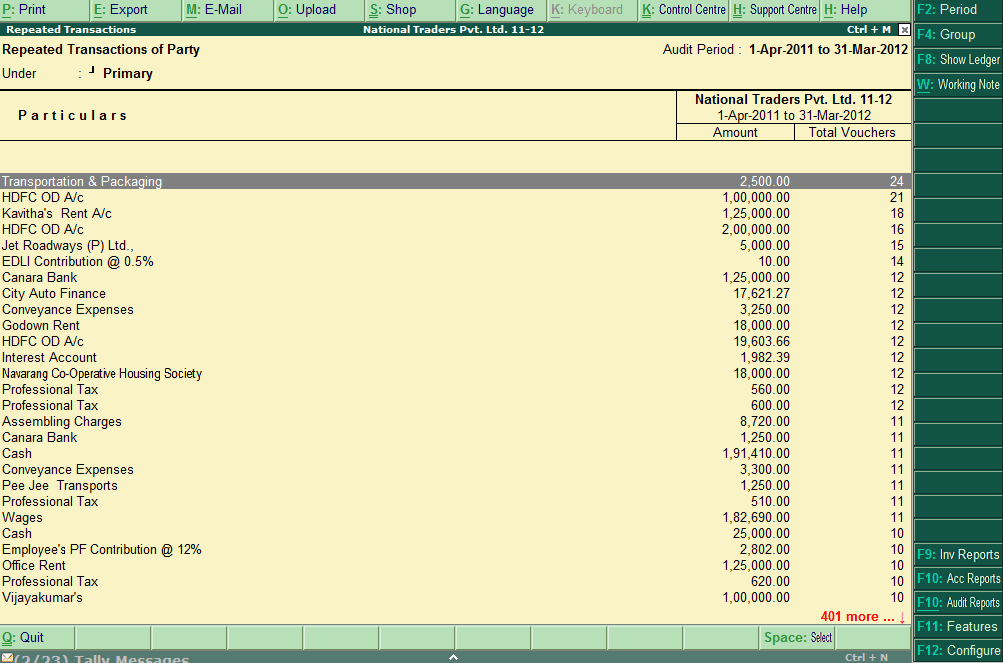
Repeated Transactions feature enables you to examine transactions of ledgers, where the same transaction amounts are repeated more than once during the financial year.
Repeated Transactions report detects duplicate transactions/repeated amounts (payments/receipts). It is a ready-report requiring no initial configuration
Go to Gateway of Tally > Audit & Compliance > Audit & Analysis > Repeated Transactions .
The Repeated Transactions screen appears as shown below:

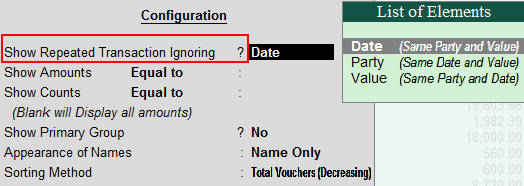
You can view additional information by configuring parameters in F12: Configure . On pressing the button, a screen with the available configuration options will be displayed.
1. Show Repeated Transaction Ignoring? : This parameter has three elements i.e. Date (Same Party and Value), Party (Same Date and Value), and Value (Same Party and Date). One of these elements can be selected to change the default display of the report.

Elements :
● Date (Same Party and Value) – On selecting this option, transactions where a ledger/party was debited/credited with the same amount on different dates will be displayed. For example , an employee is wrongly reimbursed with expenses, twice.
● Party (Same Date and Value) - On selecting this option, transactions where different ledgers/parties were debited/credited with the same amount on the same date will be displayed. For example , a wrong payment to vendor1 instead of vendor2.
● Value (Same Party and Date) – On selecting this option, transactions where a ledger/party is debited/credited with different amounts on the same date will be displayed. For example , a payment amount exceeding the authorisation level of an accountant is split into smaller amounts to avoid detection by superiors; is easily filtered and displayed.
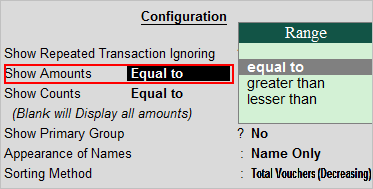
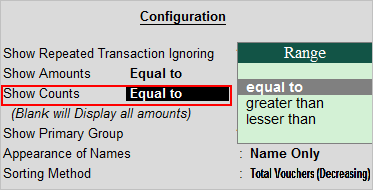
2. Show Amounts : The values in this parameter are equal to/greater than / lesser than. By selecting any of these values, you can narrow down to view the desired report.

3. Show Counts : The values in this parameter are equal to/greater than/lesser than. Selecting any of these values, you can narrow down to view the desired report.

With Tally.ERP 9, users can classify Tally Groups/Ledgers under Schedule VI Heads as required, all the while keeping the Balance Sheet and data intact.
There are six ways to classify the balances of Tally Groups Groups or to classify the balances of Tally Ledgers under the different Schedule VI Heads. One of the options is Entire Balance. This option is used when the closing balance of a Ledger has to be classified under a single Schedule VI Head.
1. In the Schedule VI Configuration screen, choose Entire Balance as the Classification Type .
2. Press Enter . The cursor moves to the Classify Under field, and a List of Groups (Schedule VI Groups) appears.
3. Select the required Schedule VI Group .
4. Press Enter .
5. Press Enter to save the Schedule VI Configuration made for the Ledger.